- Training
- Service
- Promotion
- Schedule
- Testing Center
- News
- Contact


Microsoft Certification Profile
Certificates
Q: How do I access my Microsoft Certification profile?
A:
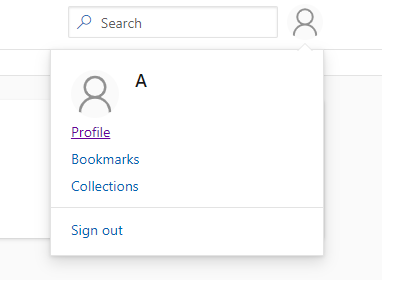
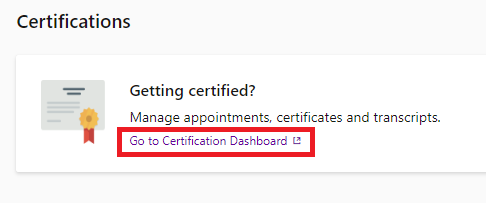
Vui lòng truy nhập vào tài khoản ít nhất 1 lần trong vòng 12 tháng.
Q: Where do I find my Microsoft Certification profile identification number (MCID)?
A: To find your Microsoft Certification identification number (MCID) log onto your certification dashboard. Your MCID is located on the right.
Q: How to unlink my MC ID?
A: For assistance in unlinking your Microsoft Certification profile from your Partner’s organization, you will need to contact our Microsoft Partners Network (MPN). They can help with partner program issues, presales assistance, issues with Microsoft products, billing questions, and more. Start here to view your Microsoft Partner Support options.
Q: How do I merge two Microsoft Certification profiles?
A: If you need help to merge two Microsoft Certification profiles contact Certification Support. A forum moderator will reply to you within 24 business hours to assist.
Q: How to sign on to my Microsoft Certification profile?
A: To sign on to your Microsoft Certification profile, follow the steps below:
To keep your account active, please access your Microsoft Certification profile once every 12 months.
Q: How do I change the email address associated with my Microsoft Certification profile?
A: Follow the steps below to change the email address associated with your Microsoft Certification profile:

Q: I have lost my Microsoft Certification profile credentials (username/email/password). What should I do?
A: If you cannot remember the credentials for your Microsoft Certification profile, contact Certification Support. A forum moderator will reply to you within 24 business hours and ask for some information to verify you own the profile, then help you gain access to your profile.
Q: How do I change my name on my Microsoft Certification profile?
A: If you need to change the name on your Microsoft Certification profile contact Certification Support. A forum moderator will reply to you within 24 business hours. You will be asked to verify information contained in your Microsoft Certification profile before the name change request will be executed. Remember, the name on your Microsoft Certification profile must match your name exactly as it appears on the government issued identification you will use to sit for a Microsoft Certification exam.
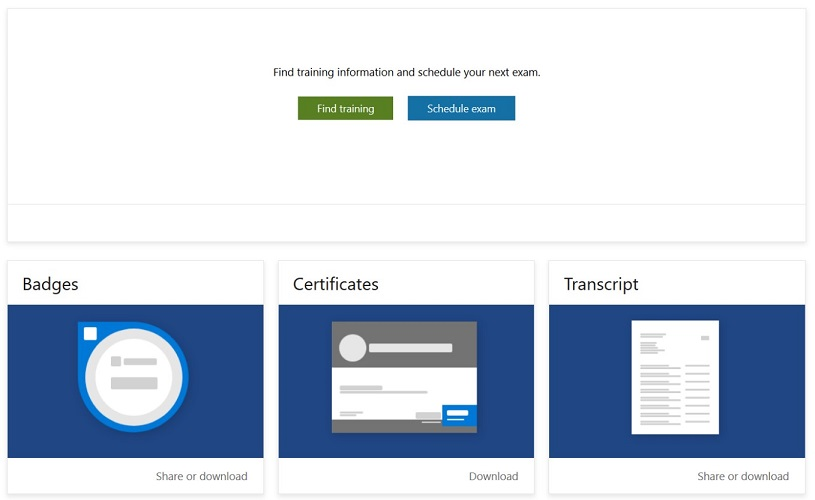
Q: How do I access my Microsoft Certification transcript?
A:
Certificates
Q: How do I find and download my certificates?
A: